
Editing a campaign
All campaign configuration tabs: General, Payments, Funnels, Rotations, Notifications, Fraud, Caps, Delayed Actions, Duplicate Responses.
In most cases, campaigns are created by a CRM Mate technical specialist during integration setup. Usually this is a test campaign. To create a campaign on your own, click the Add Campaign button.
To edit a campaign:
- Open the main Campaigns page;
- Find the campaign you need and scroll the page all the way to the right;
- Click the three dots in the right corner;
- Select View the item details. This will open the full campaign editing menu.
General tab
In the General tab, you can change the main campaign parameters that were specified during creation: name, partner, and others.
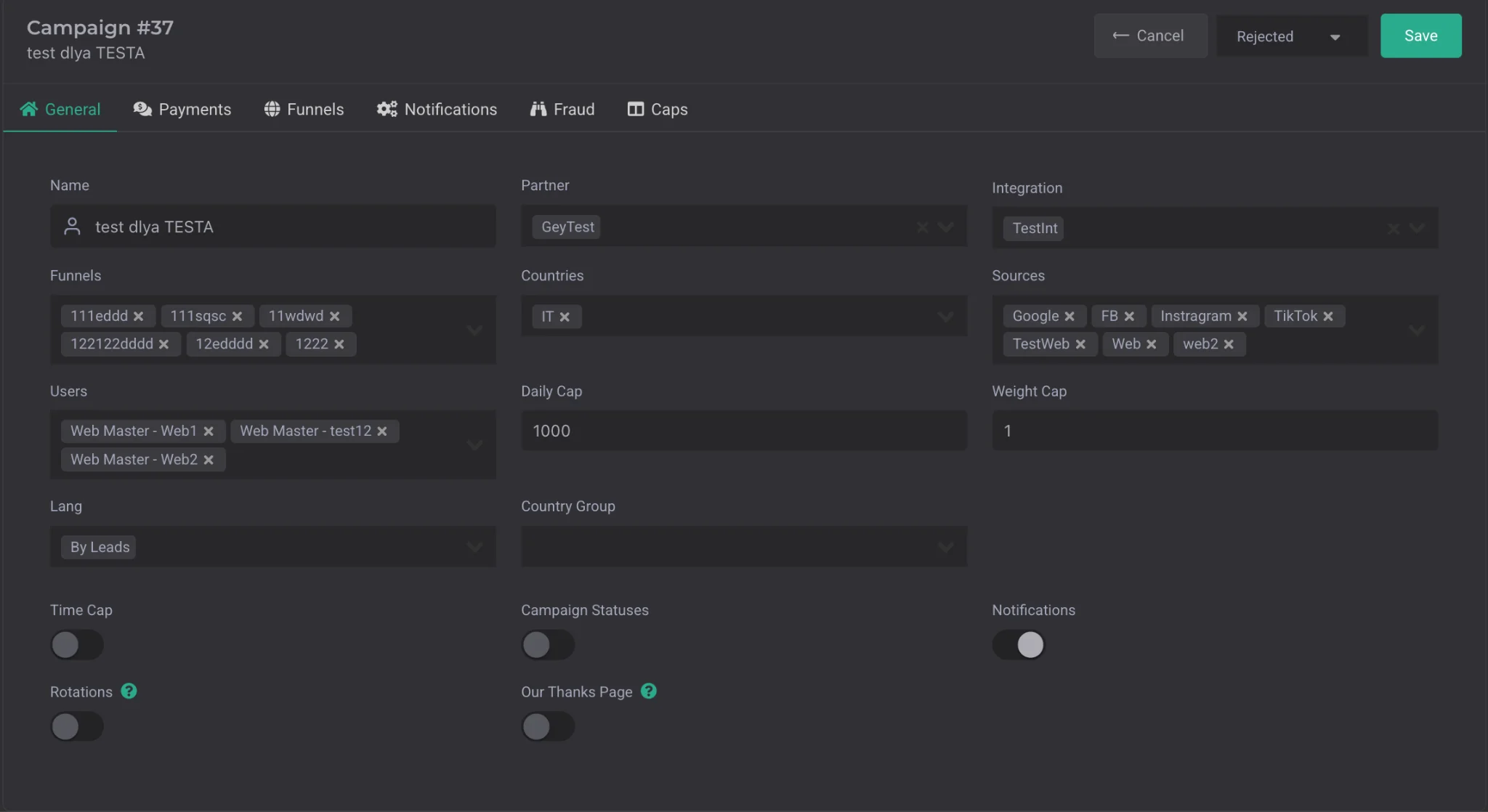
The following fields are available:
| Parameter | Description |
|---|---|
| Name | the offer name or internal campaign identifier |
| Partner | the advertiser (broker) the campaign is linked to |
| Integration | the integration through which the campaign works |
| Funnels | select or add a funnel for the campaign. The field can be left empty — in that case the campaign will accept any funnel |
| Countries | select countries in alpha-2 format, for example UA or KZ |
| Sources | traffic sources |
| Users | select users whose leads can be sent to the campaign. The field can be left empty — then the campaign will accept leads from any user |
| Status | campaign status. Active — active campaign, Pending — paused, Rejected — inactive campaign |
| Daily Cap | the maximum number of leads the campaign can accept per day. Once the limit is reached, the campaign becomes inactive until the next day |
| Lang | language setting. Two options are available: by leads — automatic language detection from the lead, or custom — manual language specification in alpha-2 format |
| Country Group | select a country group the campaign will be added to. Used to view the overall GEO cap for buyers |
| Time Cap | configures the campaign's working time. You can select start and end times as well as days of the week |
| Notification | enables notifications in CRM and Telegram, if Telegram is connected. Also opens additional notification settings for the campaign |
| Rotation | enables campaign rotation. Lets you set a limit on the number of leads that can be sent to the campaign within one hour |
| Our Thanks Page | replaces the broker's link with your own "Thank you" page. Used to verify auto-login on traffic even when the advertiser doesn't support it |
| Weight Cap | a campaign priority parameter. If the value is greater than 1, the campaign will receive more leads compared to others. |
Weight Cap works as a multiplier of the number of leads a campaign receives. For example:
- a campaign with Daily Cap 100 receives 2 leads;
- a campaign with Daily Cap 50 receives 1 lead. In percentage terms, both campaigns fill roughly the same share of their cap.
If you set for the first campaign:
- Weight Cap 2 — it will receive 4 leads
- Weight Cap 3 — it will receive 6 leads.
Payments tab
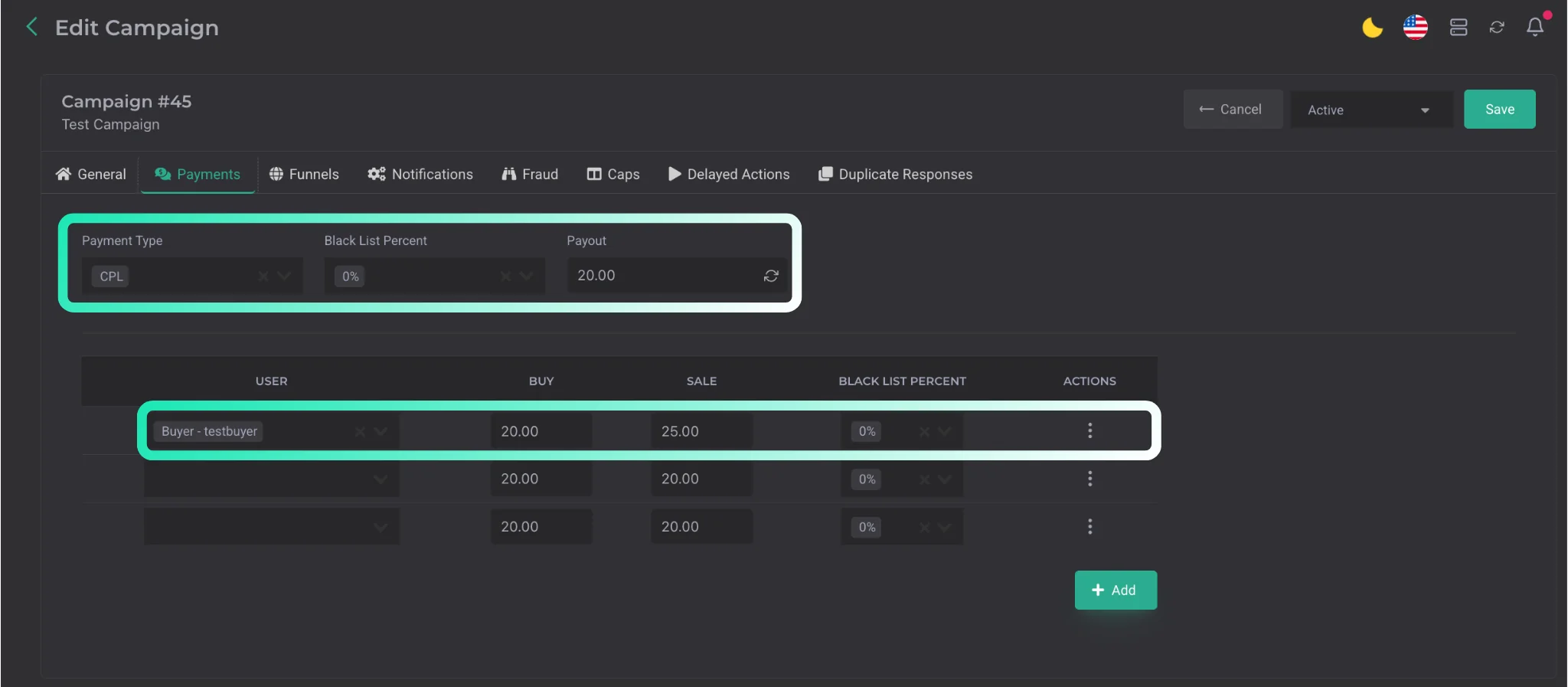
The Payments tab is where payout parameters for the campaign are configured.
The following fields are available:
| Parameter | Description |
|---|---|
| Payment Type | payout model, for example CPA or CPL |
| Black List Percent | payout percentage for statuses included in the Black List group |
| Payout | payout amount. |
You can also configure payouts separately for each user by specifying the purchase price and the sale price.
Funnels tab
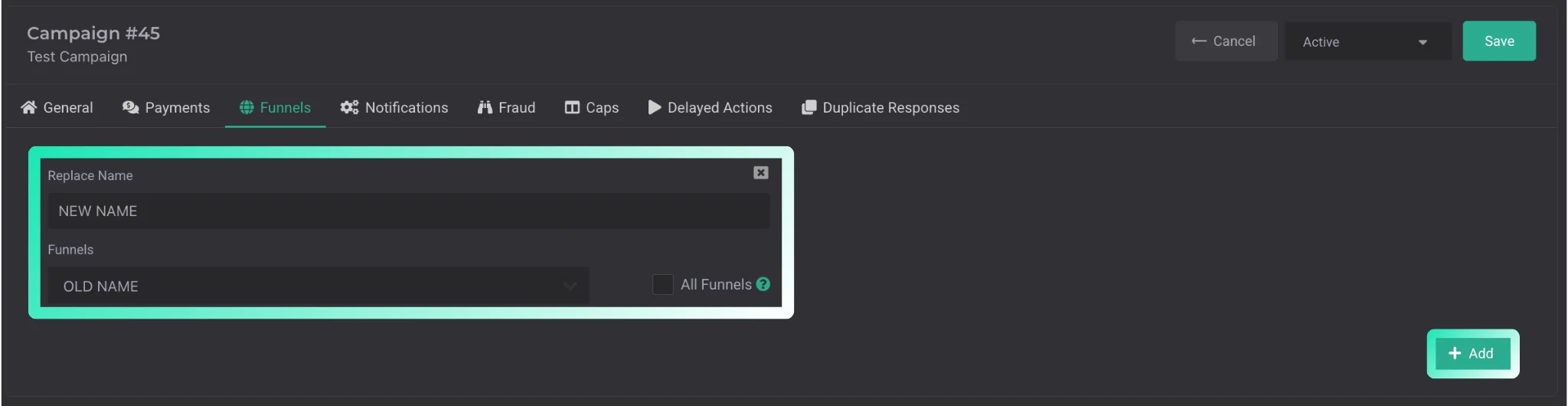
This tab is used to substitute funnel names. For example:
- Replace Name — the funnel name that the recipient will see
- Funnels — funnels that will be combined under the new name. You can select either a single funnel or several.
Rotations tab
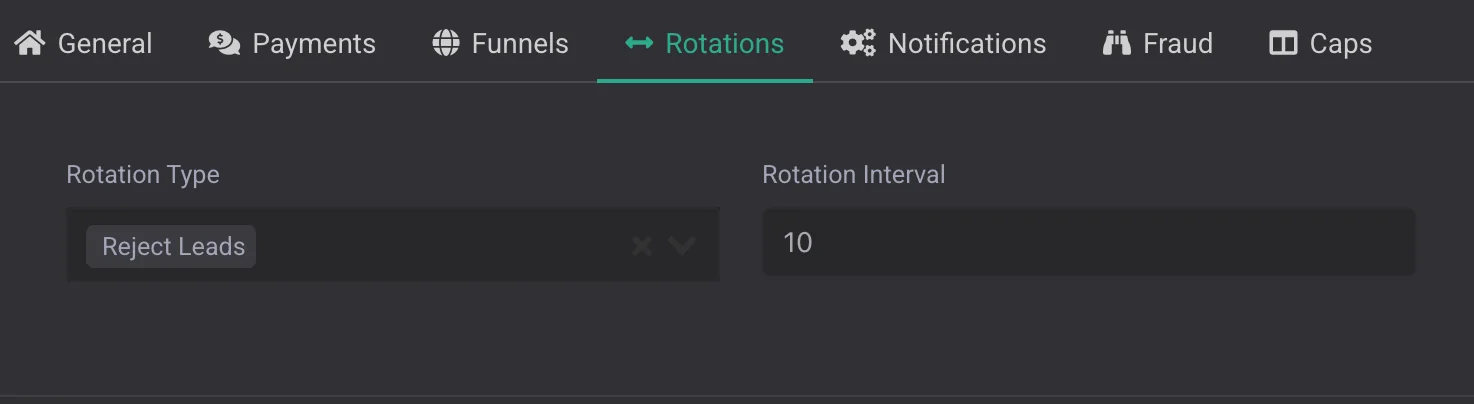
To activate rotation:
- enable rotation by switching the toggle to On;
- in the Rotation Interval field, select the time interval at which lead rotation will occur. Rotation can also be enabled in the General tab when creating or editing a campaign.

To find a rotation participant, use the search by Email or ID.
The table below displays the current rotation settings:
| Parameter | Description |
|---|---|
| ID | the participant's unique identifier |
| the participant's email | |
| Status | activity status |
| Date Send | the date of the last lead send. |
The number of leads displayed per page can be changed using the switcher — 25, 50, etc.
Notifications tab
This tab configures notifications about lead statuses, errors, and an additional statistics table in Telegram.
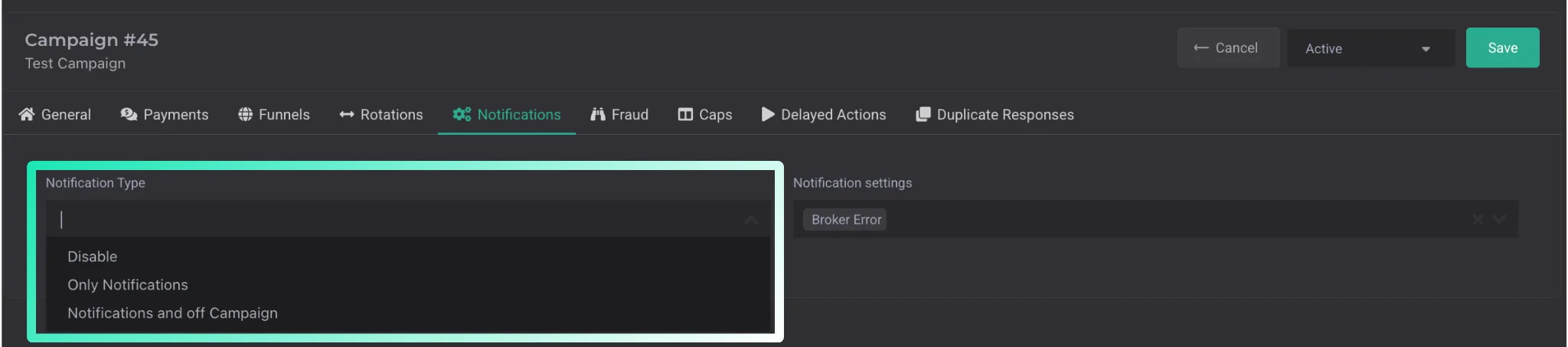
The Notification Type field offers the following options:
| Parameter | Description |
|---|---|
| Disable | notifications are off |
| Only Notifications | notifications are on; messages will arrive according to the parameters selected in Notification Settings |
| Notifications and Off Campaign | on a Lead Response error, the system sends a notification and automatically disables the campaign to prevent further errors. |
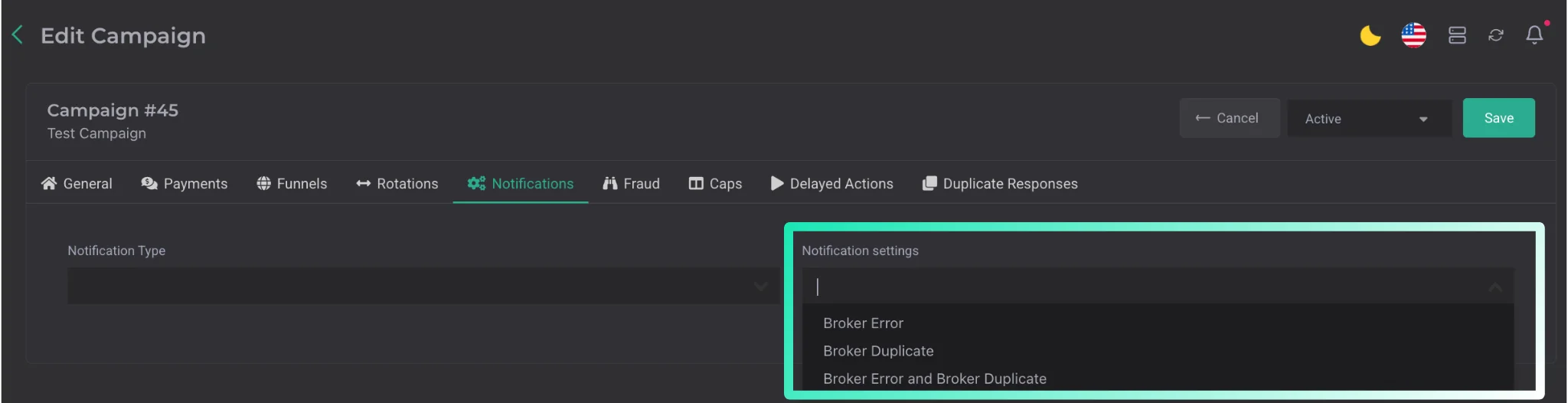
In the Notification Settings field, you can select the notification type:
| Parameter | Description |
|---|---|
| Broker Error | notifications about leads with errors |
| Broker Duplicate | notifications about leads identified as duplicates |
| Broker Error and Broker Duplicate | notifications about both errors and duplicates. |
Fraud tab
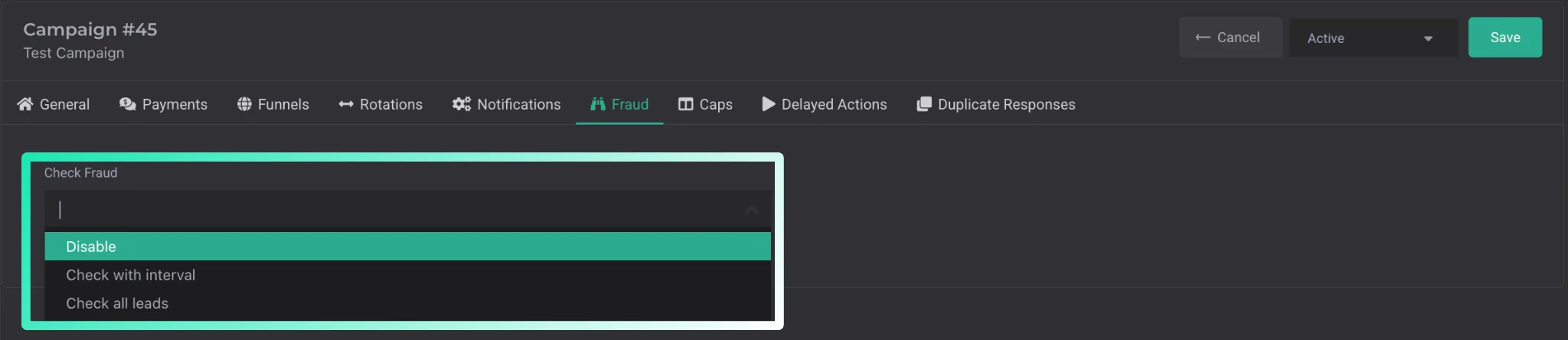
This section is for configuring additional fraud checks on leads. Hovering over the selection field opens a menu with check options. This check lets you identify fraud auto-login with 100% certainty if it was done server-side.
The following options are available:
| Parameter | Description |
|---|---|
| Disable | fraud check is off |
| Check with Interval | the system will check leads for fraud at the specified interval. In the adjacent Interval field, specify the interval in leads |
| Check All Leads | the system will check every lead. |
Caps tab
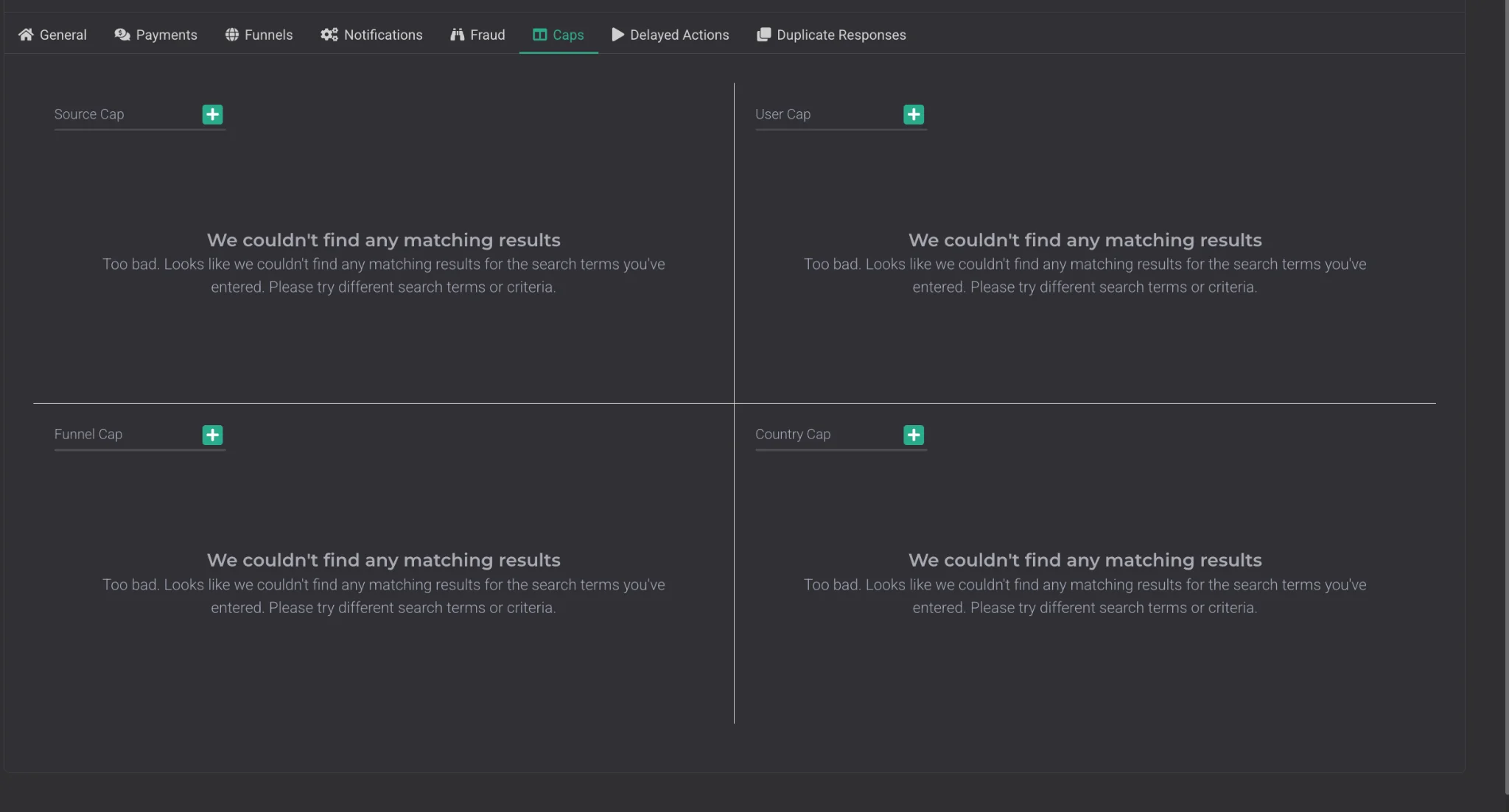
This section is used for personal cap configuration by:
- Source
- User
- Funnel
- Country
Delayed Actions tab
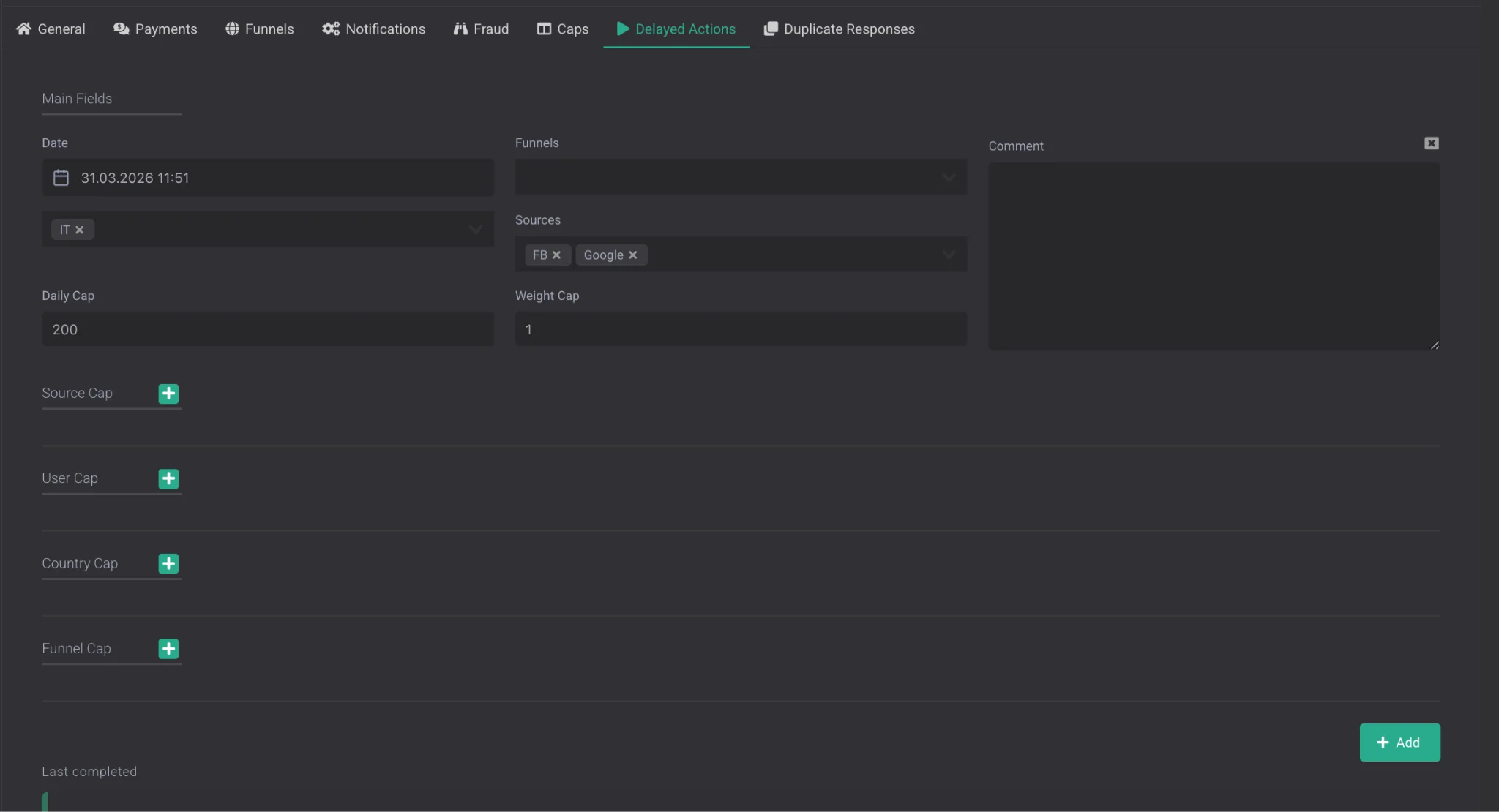
Delayed Actions is used for deferred changes and additional campaign control.
After creating a delayed action, the system automatically copies the campaign's main parameters and applies them as default values. You can change them if needed. You can also configure caps here similarly to the Caps tab, but as a delayed action for the campaign.
For convenience, a Comment field is available, where you can leave notes or a short description of the delayed action.
Duplicate Responses tab
This tab is used in cases where the broker doesn't return a separate response for duplicate leads.
To set it up, add a broker response from the Response tab in the lead card. After that, the system will automatically identify such responses as broker duplicates.
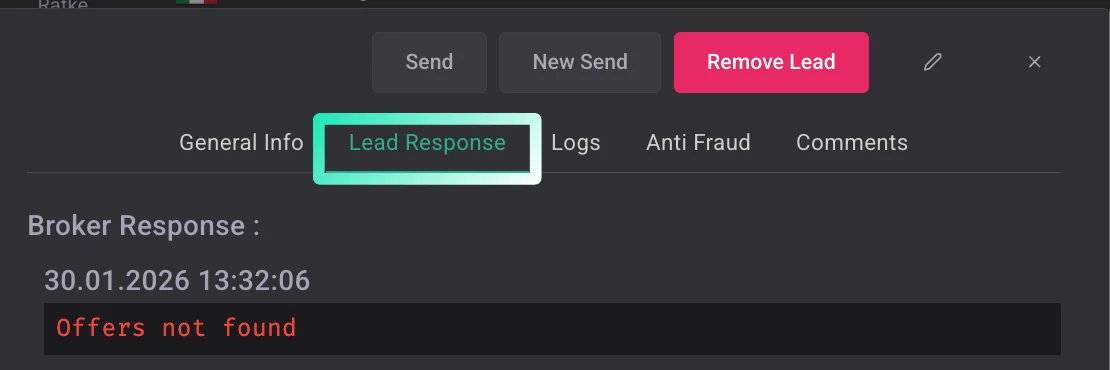
Response field.
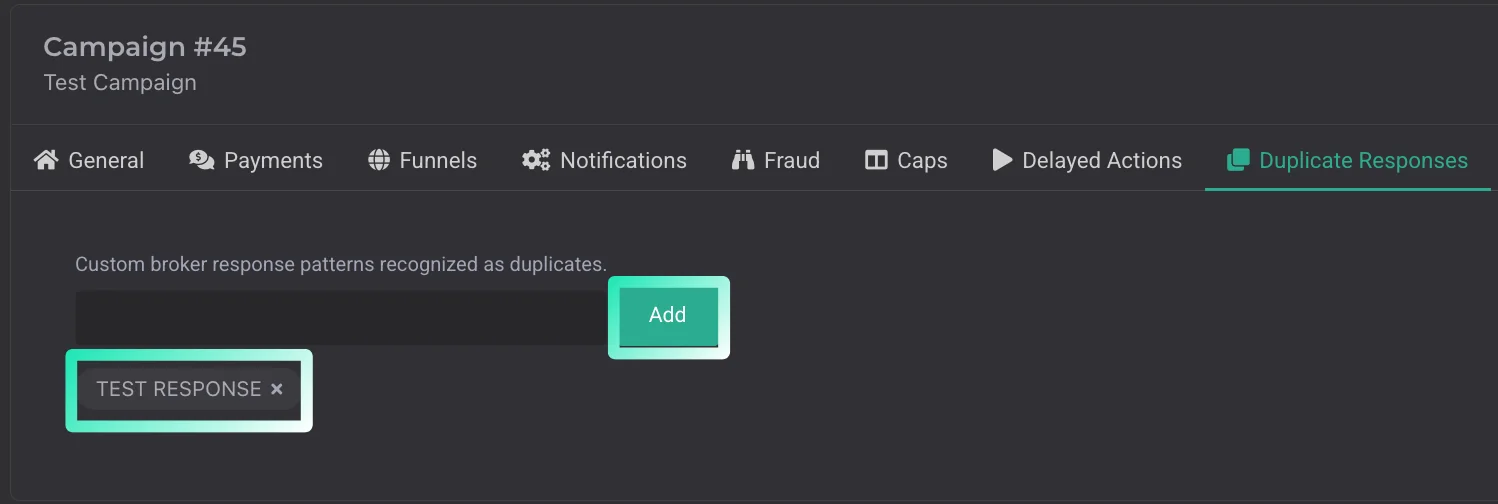
Example of an added broker response: if the system detects such a response in the lead's Response, it will automatically assign the broker duplicate status.